How to Add Stickers on TikTok: Videos & Profile Stickers Tab Guide
Stickers are one of TikTok's most versatile storytelling tools. Whether you want to boost viewer interaction on your video feed or design an aesthetic custom banner on your personal profile, knowing how to add stickers on TikTok is essential for any modern creator.
However, many creators do not realize that TikTok actually has two completely different ways to add stickers:
- Adding Stickers Inside Video Posts: Placing interactive polls, question boxes, GIFs, emojis, and countdown timers onto your recorded clips before posting.
- Creating Custom Stickers for Your Profile (Stickers Tab): Making permanent sticker sets that appear on your public profile tab (the smiley-face icon) and can be saved, shared, or arranged into panoramic sticker banners.
This illustrated step-by-step tutorial covers both methods with detailed visual breakdowns, troubleshooting tips, and best practices.
Two Ways to Add Stickers on TikTok
Before jumping into the step-by-step instructions, it helps to understand the difference between video editing stickers and profile stickers tab:
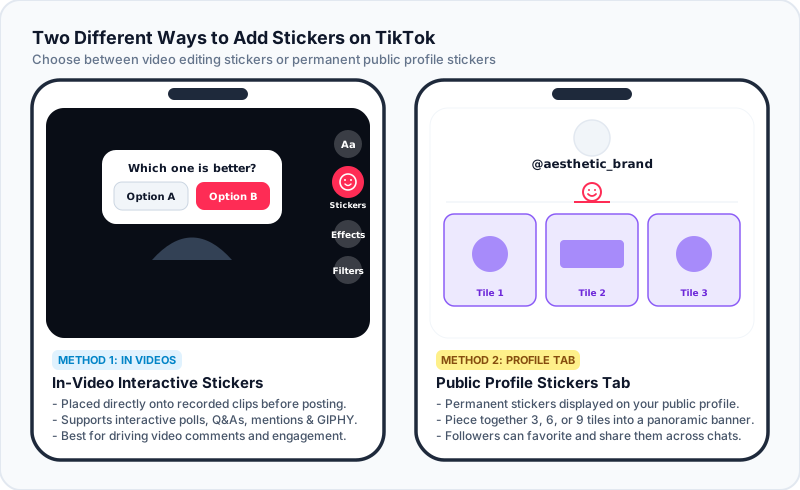
- Video Stickers: Ephemeral elements tied to an individual video post. You use them during post-production to increase watch time, ask questions, or tag locations.
- Profile Stickers (Stickers Tab): Assets published to your account's public sticker library. Followers and visitors can tap, save, favorite, and send them in direct messages or comments.
Method 1: How to Add Stickers to TikTok Videos
Adding stickers to your video clips takes just a few taps during the in-app editing phase.
Step 1: Record or Upload Your Clip
Open TikTok, tap the central + button at the bottom of your screen, and either record a new video or upload pre-recorded footage from your camera roll.
Step 2: Open the Stickers Tray
Once your video is recorded, tap the red checkmark to proceed to the editing screen. On the right-hand sidebar menu, locate and tap the Stickers icon (a smiling square face).
Step 3: Choose Your Sticker Type
TikTok organizes in-video stickers into several powerful categories:
- Interactive Polls & Questions: Add a
Pollsticker with custom choices, or anAsk me a questionprompt to collect direct replies from viewers. - Mention & Hashtag Stickers: Tag collaborators with
@Mentionor highlight trending challenges with#Hashtag. - GIPHY Animated Stickers: Use the top search bar to find trending GIFs and transparent animations powered by GIPHY.
- Custom Photo Cutouts: Tap the image upload icon inside the sticker tray to add a photo from your camera roll. TikTok will automatically detect and isolate the foreground subject.
Step 4: Scale, Position, and Pin
- Resize & Rotate: Pinch with two fingers to adjust sticker dimensions, or twist to rotate the angle.
- Pin to Moving Objects: Long-press any sticker on screen and select Pin. Scrub the timeline to choose where the sticker follows an object or person throughout the scene.
- Set Duration: Tap the sticker and choose Set duration to control exact start and end timestamps so the sticker disappears on cue.
Method 2: How to Create & Add Custom Stickers to Your Profile Tab
If you want stickers to appear directly on your profile's dedicated Stickers Tab (the smiley-face tab next to your video grid), you create them directly from published videos.
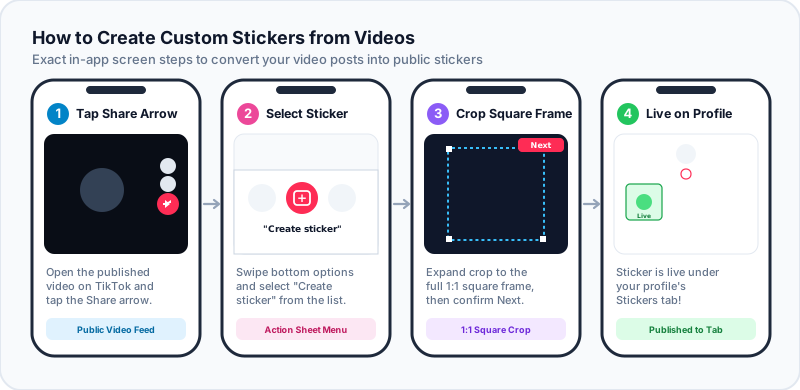
Here is the full 4-step creation flow:
Step 1: Post the Base Video
TikTok only allows custom profile stickers to be generated from published video clips.
- To ensure crisp quality on your profile, prepare a square 720 x 720 pixel video clip (3 to 5 seconds is optimal).
- If you have a static photo or GIF, use our free TikTok Sticker Banner Maker to convert it into a perfectly framed 720 x 720 MP4 video clip.
- Publish the clip as a Public video on TikTok.
Step 2: Tap Share and Select "Create Sticker"
- Open your published video on TikTok.
- Tap the Share arrow icon on the right side.
- In the lower action sheet, swipe until you find the Create sticker icon (a sticker outline with a plus sign).
Step 3: Crop and Choose Sticker Style
TikTok will open the sticker configuration screen:
- Full Square Frame: For panoramic sticker banners or square artwork, expand the crop box to the full 1:1 boundaries.
- Auto Subject Cut-out: For character faces or emojis, let TikTok automatically cut out the background outline.
- Tap Next in the top-right corner, review the preview, and tap Create sticker.
Step 4: Verify on Your Stickers Tab
Return to your TikTok profile and tap the Stickers tab (the smiling face icon between your video feed and private bookmarks). Your new sticker will be live and visible to all profile visitors!
How to Create Multi-Tile Panoramic Sticker Banners
One of the most creative applications of TikTok's Stickers Tab is assembling a *Sticker Banner+�u���Ta panoramic artwork sliced across 3, 6, or 9 adjacent stickers.
TikTok Profile Stickers Tab (3 x 1 Panoramic View):
[ Step #3 (Top-Left) ]  [ Step #2 (Center) ]  [ Step #1 (Top-Right) ]
Why Order and Seam Math Matter
Because TikTok always places the newest sticker at the top-left, you must create and publish your banner tiles in reverse order:
- Upload slice #1 first (it gets pushed to the right).
- Upload slice #2 second (it takes the middle slot).
- Upload slice #3 last (it takes the top-left slot).
Furthermore, TikTok leaves a 7.3% spacing gap between adjacent stickers. Cutting an image with ordinary splitters stretches lines and faces.
Our browser-based TikTok Sticker Banner Splitter applies automatic 7.3% gap compensation, numbers every slice by upload step, and exports 720 x 720 MP4 video clips ready for instant uploading.
Troubleshooting: Why Can't I Add Stickers on TikTok?
1. The "Create Sticker" Button Is Missing
- Video Must Be Public: If your video's privacy setting is set to "Private" or "Friends Only", the Create Sticker button will not appear.
- Animated Thumbnails Setting: Go to your TikTok profile -> tap the three-line menu -> Settings and privacy -> Accessibility, and toggle Animated thumbnail to ON. Then restart the TikTok app.
- Server Processing Delay: After publishing a new video clip, wait 30 to 60 seconds for TikTok to finish encoding before tapping Share.
2. Stickers Look Blurry or Pixelated
- In-video stickers look best when your base video is recorded at 1080p (1080 x 1920).
- For profile stickers, always export source tiles at 720 x 720 pixels.
3. Stickers Shifted Out of Place on My Profile
Because TikTok sorts stickers by newest-first, publishing a single new sticker later will shift existing tiles by one cell. To preserve a sticker banner, always publish new stickers in multiples of three (3, 6, or 9 tiles).
Frequently Asked Questions (FAQ)
Can anyone use the stickers I add to my TikTok profile?
Yes. Custom stickers published to your Stickers Tab are public. Followers and visitors can tap on any sticker to add it to their personal favorites, share it in chats, or use it in direct messages.
Can I delete a sticker after creating it?
Yes. Go to your TikTok profile -> tap the Stickers tab -> tap on the sticker you want to remove -> tap the three dots (...) icon in the top corner -> select Delete. Note that deleting a sticker shifts adjacent stickers.
Do stickers cost money on TikTok?
No. Creating and adding stickers on TikTok is completely free.
Upgrade Your TikTok Profile Aesthetic
Adding interactive stickers to your videos boosts viewer engagement, while designing custom stickers for your profile tab establishes a memorable creator brand.
Try our free TikTok Sticker Banner Maker & Splitter today to slice photos, animated GIFs, or videos into seamless 720 x 720 profile sticker banners with automatic gap compensation!