How to Make a TikTok Sticker Banner: The Complete Step-by-Step Guide
If you have spent any time browsing aesthetic TikTok accounts recently, you have likely noticed a striking design trend: creators displaying a massive, seamless panoramic image or animated loop directly across their profile's Stickers tab (the smiley-face icon next to your video feed).
When done right, a custom sticker banner immediately transforms a standard TikTok profile into an eye-catching digital portfolio. Whether you want a clean 3-sticker single row, a 6-sticker double banner, or an immersive 9-sticker grid takeover, learning how to make a TikTok sticker banner gives your profile an instant visual edge.
However, crafting one manually often leads to frustration. Creators commonly struggle with reversed tile orders, misaligned seams across grid gaps, or finding that TikTok only allows stickers created from video posts. This comprehensive guide walks you through the exact mechanics, math, and steps to make your own flawless TikTok sticker banner using photos, animated GIFs, or videos.
What Is a TikTok Sticker Banner?
A TikTok sticker banner is a collection of 3, 6, or 9 public stickers published on your TikTok profile that piece together like a mosaic puzzle to form one coherent picture or animation.
Instead of displaying disconnected reaction emojis or random graphics, each tile occupies a dedicated slot in TikTok's three-column sticker showcase:
- 3-Sticker Banner (3 x 1): A sleek single panoramic header across the top row of your stickers tab. Perfect for logo reveals, anime panoramic landscapes, or typography banners.
- 6-Sticker Grid (3 x 2): A balanced two-row display offering double the vertical canvas. Ideal for character art, game scenes, or product showcases.
- 9-Sticker Profile Takeover (3 x 3): A full-screen square matrix that completely covers the initial mobile viewport of your stickers tab.
To pull this off without distorted graphics or backwards layouts, you must understand three technical requirements: 720 x 720 square dimensions, the 7.3% seam gap, and reverse sequential uploading.
Core Concept 1: The Newest-First Upload Rule (Why Order Matters)
The single most common mistake creators make when learning how to make a TikTok sticker banner is uploading their image slices from left to right (#1 on the left, #2 in the middle, #3 on the right).
When you do this, your banner ends up completely backwards on TikTok.
How TikTok's Sticker Grid Works
TikTok automatically sorts your public stickers with newest created on the top-left (Slot 1) and pushes older stickers down and to the right.
To achieve a natural 1-2-3 left-to-right visual layout, you must publish your tiles in reverse sequence:
- Step #1 (Rightmost Tile): You create and post slice #1 first. It briefly sits on the left.
- Step #2 (Center Tile): You post slice #2 next. This pushes slice #1 into the center position.
- Step #3 (Leftmost Tile): You post slice #3 last. This pushes slice #1 to the far right, slice #2 to the center, and takes the top-left spot.
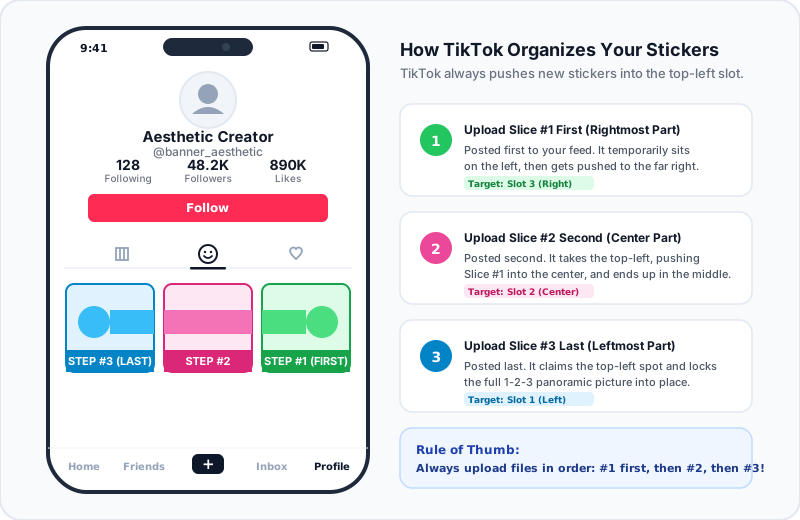
Our dedicated TikTok Sticker Banner Maker automatically labels every slice with its exact creation step number (Step #1, Step #2, Step #3), eliminating manual guesswork.
Core Concept 2: The 7.3% Grid Gap Problem
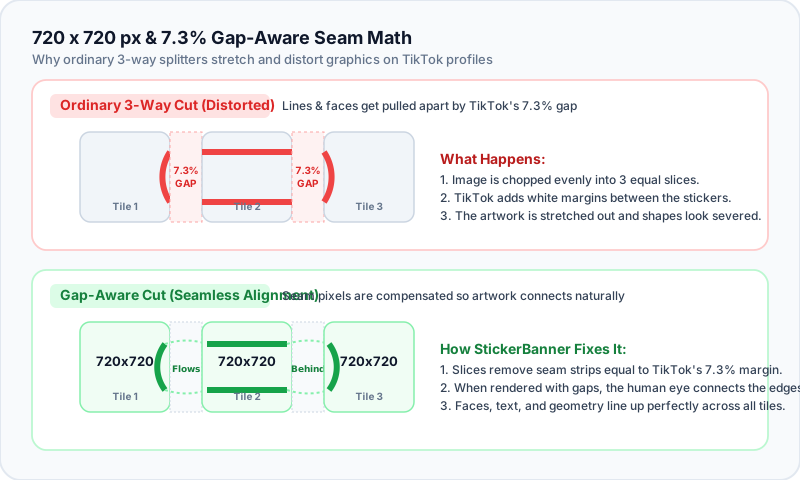
If you split an image into three equal thirds using an ordinary online photo cutter, your banner will look distorted on mobile phones. Straight lines will appear broken, and facial features will stretch unnaturally across the tiles.
The Problem with Equal-Thirds Splitting
TikTok does not press stickers flush against one another. The mobile application inserts a ~7.3% spacing gap between each sticker cell.
When an image is cut equally without accounting for this negative space, TikTok inserts dead space between adjacent pixels. The viewer's brain perceives this as duplicated or stretched content across the seams.
How Gap-Aware Alignment Solves It
Our browser-based splitter applies Gap-Aware Alignment. It calculates the exact 7.3% width ratio and removes the hidden seam pixels from behind the gaps. When TikTok places the tiles side-by-side with its native margin, your artwork flows seamlessly behind the dividers just like looking through a windowpane.
Step-by-Step Guide: How to Make Your TikTok Sticker Banner
Creating your banner takes less than five minutes directly in your web browser. No design software or complex video editing tools are required.
Step 1: Upload Your Artwork & Choose Grid Size
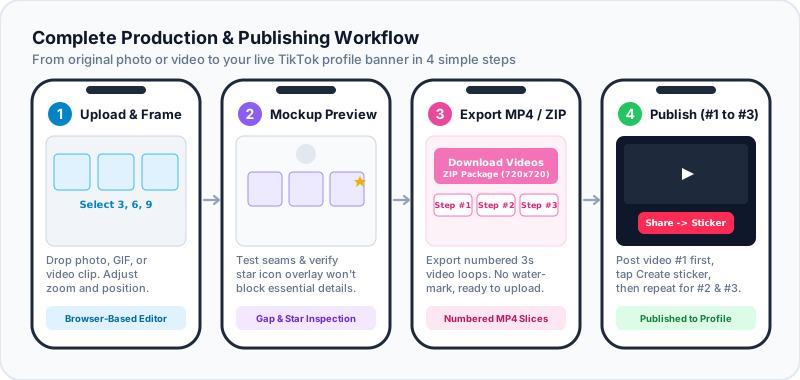
- Visit the TikTok Sticker Banner Maker & Splitter in Chrome, Safari, Edge, or mobile browser.
- Click Upload Media or drop an image (PNG, JPG, WebP), animated GIF, or video file (MP4, MOV).
- Select your target grid format:
- 3 Slices (3 x 1) for a single-row banner.
- 6 Slices (3 x 2) for a double-row banner.
- 9 Slices (3 x 3) for a full profile takeover.
Step 2: Frame & Fine-Tune Your Composition
Once your media is loaded on the 1800 x 1800 master canvas:
- Zoom & Pan: Drag the artwork to reposition focal points. Use the zoom slider to ensure key text or character faces sit comfortably within safe display margins.
- Gap-Aware Toggle: Keep Gap-Aware Alignment enabled (recommended) to maintain continuous geometry across tile borders.
- Offset Padding: If you already have 1 or 2 pre-existing stickers on your profile, use the Offset feature to shift your banner into alignment without deleting your older favorites.
- Interactive Phone Simulator: Toggle between Light and Dark mode in the live mobile simulator. You can also turn on the Visitor Favorite Star overlay to verify that TikTok's bookmark star icon won't block important details in the top-right corner of your stickers.
Step 3: Export Slices (720 x 720 px PNGs or 3s MP4s)
TikTok requires profile stickers to be created from video posts. If you upload a static photo or animated GIF, our tool automatically generates square 720 x 720 pixel 3-second MP4 video loops.
- Click Download Slices (720x720) to open the export dialog.
- You can download individual slices or click Download Videos (ZIP) to bundle all slices into an organized archive.
- Every file is numbered sequentially (e.g.,
tiktok-sticker-step-1.mp4,tiktok-sticker-step-2.mp4, etc.).
Step 4: Post on TikTok & Convert to Stickers
Now bring your numbered files into the official TikTok mobile app:
- Post Slice #1: Open TikTok, tap the
+button, selecttiktok-sticker-step-1.mp4, and publish it as a public video post. - Create Sticker:
- Open the newly published video.
- Tap the Share arrow on the right side.
- Select Create sticker.
- Adjust the cropping boundaries if prompted, tap Next, and confirm Create sticker.
- Repeat for Slices #2 and #3:
- Next, post
tiktok-sticker-step-2.mp4and convert it to a sticker. - Finally, post
tiktok-sticker-step-3.mp4and convert it to a sticker.
- Next, post
- Inspect Your Profile: Go to your TikTok profile and tap the Stickers tab (the smiley-face icon). Your stickers will snap into place to form one continuous panoramic header.
Troubleshooting Common TikTok Sticker Issues
Issue 1: "Create Sticker" Option Is Missing
If you tap the Share button on your video but don't see the Create sticker icon:
- Check Video Visibility: Private or Friends-only videos cannot be turned into public profile stickers. Ensure your video's privacy setting is set to Everyone.
- Turn on Animated Thumbnails: Go to TikTok Profile -> Settings and privacy -> Accessibility, and ensure Animated thumbnail is toggled ON.
- Wait for Processing: TikTok's server takes 10 to 60 seconds to process newly published uploads before unlocking sticker generation.
- App Update: Ensure your TikTok app is updated to the latest version in the iOS App Store or Google Play Store.
Issue 2: My Banner Shifted After Uploading a New Sticker
Because TikTok pushes older stickers down as new ones arrive, uploading a single new sticker later will shift every tile by one position, breaking your grid alignment.
Pro Solution: Always upload new stickers in multiples of three (e.g., add 3 new stickers at once to create a brand new top row while pushing your entire existing banner down smoothly). Alternatively, use the Offset function in our tool to compensate for existing non-banner stickers.
Frequently Asked Questions (FAQ)
What dimensions should TikTok sticker banner slices be?
Each slice should be a square 720 x 720 pixels. This matches TikTok's native sticker resolution, ensuring sharp graphics without pixelation or compression blur.
Can I use static photos if TikTok requires videos for stickers?
Yes. Our tool converts static photos and animated GIFs into seamless 3-second 720 x 720 MP4 video files. You can post these short clips directly to TikTok and convert them into profile stickers instantly without third-party video editors.
Is the TikTok sticker banner tool free?
Yes, the tool is 100% free with no watermarks and no mandatory account sign-up. All frame slicing, GIF decoding, and video encoding happen client-side inside your browser for maximum speed and privacy.
How do I delete or reorder stickers if I made a mistake?
To remove an incorrect sticker, navigate to your profile's Stickers tab, tap on the sticker you wish to remove, tap the three dots or settings icon, and select Delete. Keep in mind that deleting a tile will shift adjacent stickers, so you may need to recreate the row in proper sequence.
Ready to Level Up Your TikTok Profile?
A clean, creative sticker banner makes your TikTok profile immediately memorable to visitors, brands, and prospective followers.
Get started now with our free, browser-based TikTok Sticker Banner Maker to slice your favorite photos, anime art, brand graphics, or video loops into perfect 720 x 720 profile stickers.